

Download Internet Explorer 7 – Secure, Fast, and Tab‑Savvy Browser
Overview
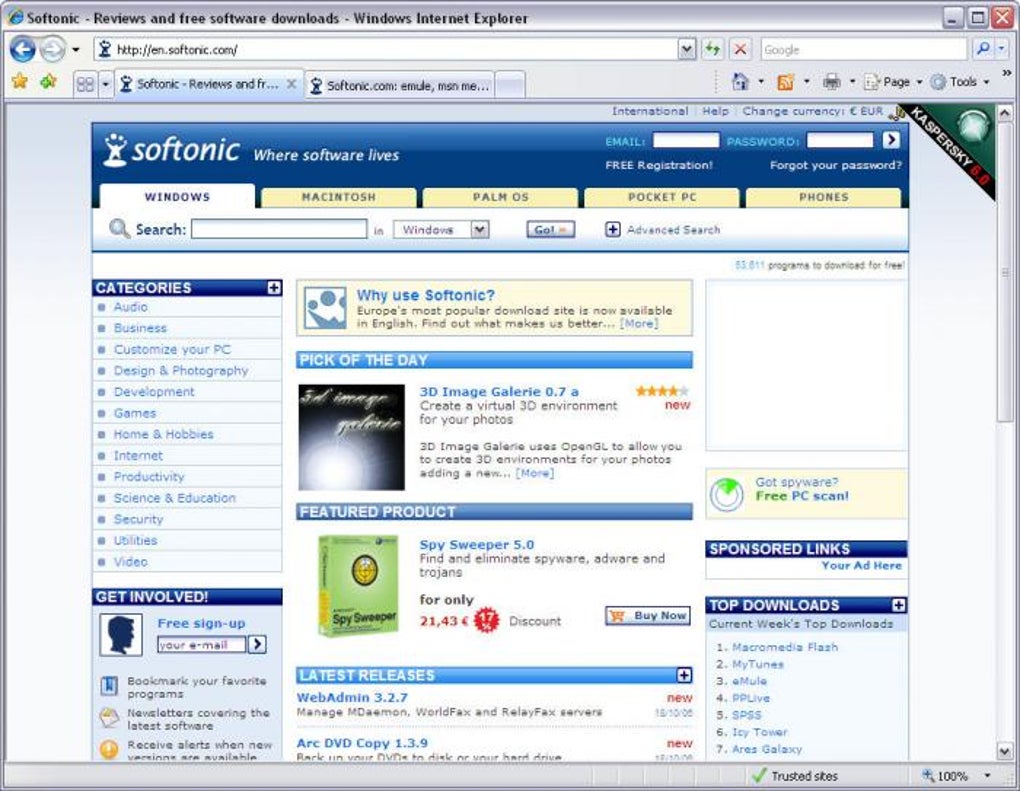
Internet Explorer 7 (IE7) marks Microsoft’s most ambitious browser overhaul since the early days of the Internet Explorer series. After years of criticism for lagging behind competitors like Firefox and Chrome, Microsoft finally introduced a streamlined interface, tabbed browsing, and a host of security upgrades designed to win back users who have migrated elsewhere. The new design removes the cluttered menu bar, replacing it with a compact set of icons positioned in the top‑right corner.
This not only frees up valuable screen real estate but also makes navigation feel more intuitive for both novice and power users. One of the headline features is the “Quick Tabs” button, which presents thumbnail previews of all open tabs on a single screen—a visual cue that speeds up multitasking and reduces the need to hunt through a long list of titles. IE7 also adds a dedicated “New Tab” button for instant page loading, and each tab now includes its own close button, a small but welcome improvement over previous versions.
The browser integrates an RSS reader that highlights feed‑enabled sites with an orange icon, allowing you to subscribe with a single click. The Favorites Center consolidates bookmarks, feeds, and browsing history into a single pane, simplifying organization. On the security front, IE7 introduces a pop‑up blocker, basic anti‑phishing filters, and support for SSL 2.0, SSL 3.0, and TLS 1.0 protocols, bringing its protection level closer to that of contemporary browsers.
While the browser still falls short of the Acid2 test and lacks some cutting‑edge web standards, it offers a solid, free, and secure browsing experience for Windows XP SP2 users and above.
Key Features of Internet Explorer 7
- Tabbed Browsing: Open multiple pages simultaneously, each with its own close button, and switch instantly using the tab bar.
- Quick Tabs Preview: Thumbnail view of all open tabs in a single overlay, improving visual navigation.
- Streamlined Interface: Minimalist icon‑based toolbar replaces the old menu bar, freeing up screen space.
- Favorites Center: Unified hub for bookmarks, RSS feeds, and browsing history, accessed via the star icon.
- RSS Integration: Automatic detection of RSS feeds with an orange toolbar icon; one‑click subscription.
- Print Preview Tool: Adjust page layout to match paper size before printing, reducing wasted ink.
- Security Enhancements: Pop‑up blocker, anti‑phishing filter, and support for SSL 2.0/3.0 and TLS 1.0.
- Search Provider Flexibility: Add multiple search engines to the address bar for personalized queries.
- Homepage Tab Groups: Save collections of tabs as your startup page, launching them all at once.
- Compatibility Mode: Better handling of legacy websites that rely on older HTML standards.
Installation, Usage, and Compatibility
Installing Internet Explorer 7 is straightforward but comes with a few caveats. The installer requires Windows XP Service Pack 2 or later; earlier versions are not supported. Before you begin, it is advisable to temporarily disable any third‑party antivirus software to prevent interference with the installation process.
Once disabled, run the downloaded IE7Setup.exe file as an administrator and follow the on‑screen prompts. The wizard will guide you through license agreement acceptance, component selection, and final installation. After the installation completes, you must restart your computer to ensure all system files are properly registered.
Once launched, IE7 greets you with a clean home page that can be customized with your preferred search engine and a set of quick‑access links. To open a new tab, click the “New Tab” button next to the address bar or press Ctrl+T. For rapid navigation between many open pages, use the “Quick Tabs” button; a thumbnail grid will appear, allowing you to select any tab with a single click.
To add a site to your Favorites Center, click the large star icon, choose “Add to Favorites,” and optionally create a folder for better organization. RSS feeds are automatically detected; when you visit a feed‑enabled site, an orange RSS icon appears. Clicking it opens a simple subscription dialog where you can add the feed to your Favorites Center for later reading.
Compatibility: IE7 officially supports Windows XP SP2, Windows Vista, and Windows 7 (both 32‑bit and 64‑bit). Although the browser can run on later versions of Windows, Microsoft does not provide official support, and some features may behave inconsistently. Mobile platforms such as Android or iOS are not supported; Microsoft later introduced separate mobile browsers for those ecosystems. For best performance, ensure your system has at least 512 MB of RAM and a modern graphics driver, as IE7 relies on hardware acceleration for smooth scrolling and rendering.
Pros, Cons, FAQ, and Final Verdict
Pros
- Free and easy to download from Microsoft’s official site.
- Introduces true tabbed browsing with close buttons on each tab.
- Compact, icon‑driven interface maximizes page viewing area.
- Built‑in RSS detection and a centralized Favorites Center.
- Improved security with pop‑up blocking, anti‑phishing filter, and SSL/TLS support.
- Quick Tabs preview offers a visual shortcut for multitasking.
Cons
- Requires Windows XP SP2 or newer; older systems cannot install.
- Installation may require temporary disabling of antivirus software.
- Performance can lag when opening many tabs or applying settings.
- Limited extension ecosystem compared with Firefox or Chrome.
- Fails the Acid2 test and lacks support for some modern web standards.
- Anti‑phishing filter is not as robust as competing browsers.
Frequently Asked Questions
Is Internet Explorer 7 still supported by Microsoft?
Microsoft officially ended support for IE7 in 2013. While the browser still works on supported Windows versions, it no longer receives security updates, so using it for sensitive activities is not recommended.
Can I install IE7 on Windows 10?
IE7 is not designed for Windows 10, and Microsoft does not provide an official installer for that OS. Attempting to run the installer may lead to compatibility issues or failure to install.
How does IE7 handle modern JavaScript frameworks?
IE7’s JavaScript engine predates many modern features (e.g., ES6). Frameworks like React or Angular require polyfills or newer browsers; therefore, many contemporary web applications will not function correctly in IE7.
Is the anti‑phishing filter reliable?
The built‑in filter provides basic protection, but independent testing showed it misses many known phishing sites. For stronger protection, use a dedicated anti‑phishing extension or an external security suite.
Can I import bookmarks from other browsers?
Yes. IE7 includes an import wizard that can read bookmarks from Firefox, Netscape, and other browsers, allowing you to migrate your favorites with a few clicks.
Conclusion & Call to Action
Internet Explorer 7 represents a notable step forward for Microsoft’s flagship browser, delivering tabbed browsing, a cleaner UI, and modest security upgrades that bring it closer to the standards set by its rivals. While it cannot fully match the speed, extension ecosystem, or modern‑web compatibility of Firefox or Chrome, IE7 still offers a free, familiar environment for users who remain on Windows XP or early Windows Vista systems. If you need a lightweight, no‑cost browser for basic web surfing and you’re comfortable staying within an older Windows environment, IE7 is a viable choice—just remember to supplement its limited anti‑phishing capabilities with a reputable security suite. To experience IE7’s streamlined interface and tab‑centric workflow, download Internet Explorer 7 now and enjoy a more secure, organized browsing experience.
Internet Explorer 7 offers essential modernizations like tabbed browsing and a cleaner UI, but its performance quirks and outdated standards support limit its usefulness for power users.







